
1. Pick a reference for each subject
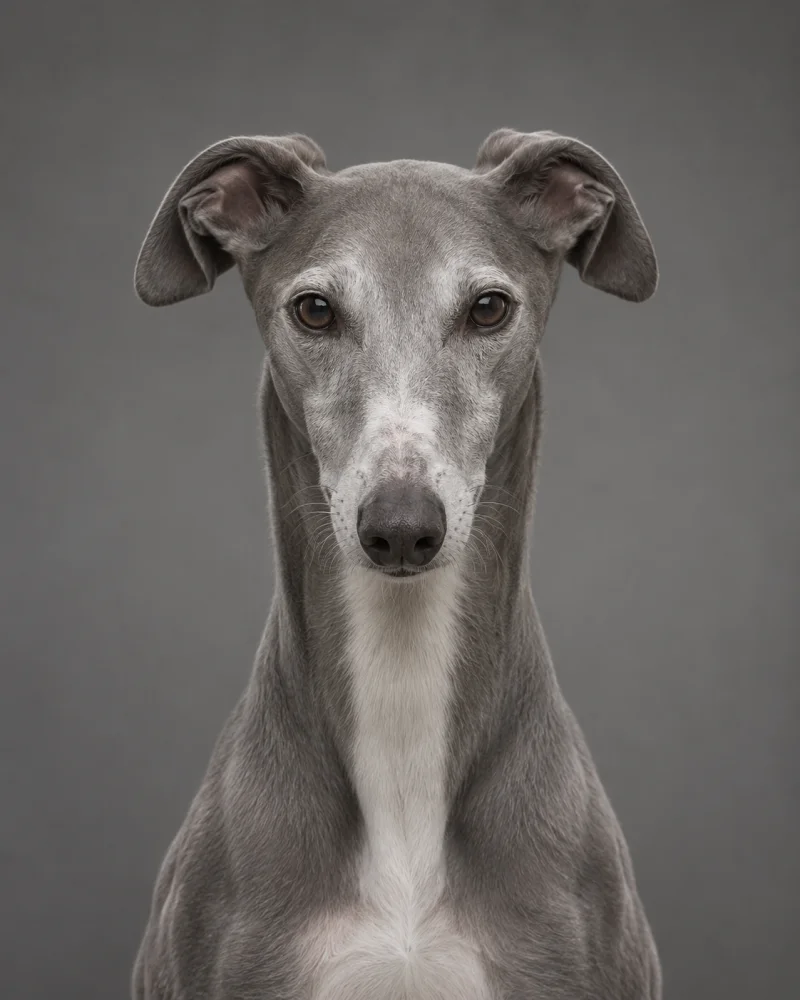
Suppose you have a photo of yourself and a photo of your dog taken months apart. Open each original at full size. Can you see both eyes? Can you tell where the dog’s muzzle ends and its chest begins? Choose the clearer photograph, even if the background is messy. Avoid beauty filters, heavy shadows and screenshots of small thumbnails.

2. Upload the originals separately
Open the pet and owner creator. Add the human reference to the people area and the animal reference to the pet area. Skip the collage step. Leaving each image intact gives the creator more detail to work with.
Use JPG, PNG or WebP files up to 5 MB each. You can add up to 15 photos within a combined 40 MB. If a phone photo is too large, export a smaller JPEG and zoom in once to make sure the eyes are still sharp.
3. Match the scene to your group
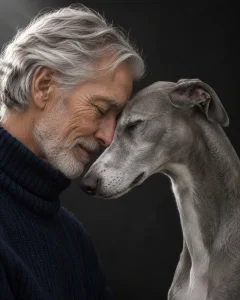
For one person and one pet, a close crop puts the emphasis on their faces. For a group, use the family portrait creator and choose a scene with the right number of people and pets. Before starting, remove duplicate or blurry uploads and check that you have permission to use each photo.
4. Inspect the previews before downloading
Start with the easiest details to recognize: a white paw, the shape of a smile, a bent ear. Then count the subjects and look at where hands meet fur. For a print, check whether the printer’s crop would cut off an ear or a face. Once you have a favorite, the cost guide explains the difference between a download and a physical print.